Original Source:
https://www.thomasmaurer.ch/2014/01/how-to-install-vpn-on-windows-server-2012-r2/

https://www.thomasmaurer.ch/2014/01/how-to-install-vpn-on-windows-server-2012-r2/
This post shows you how you can install a VPN Server on Windows Server 2012 R2 Step-by-Step. It shows you how you can easily setup a VPN server fro a small environment or for a hosted server scenario.
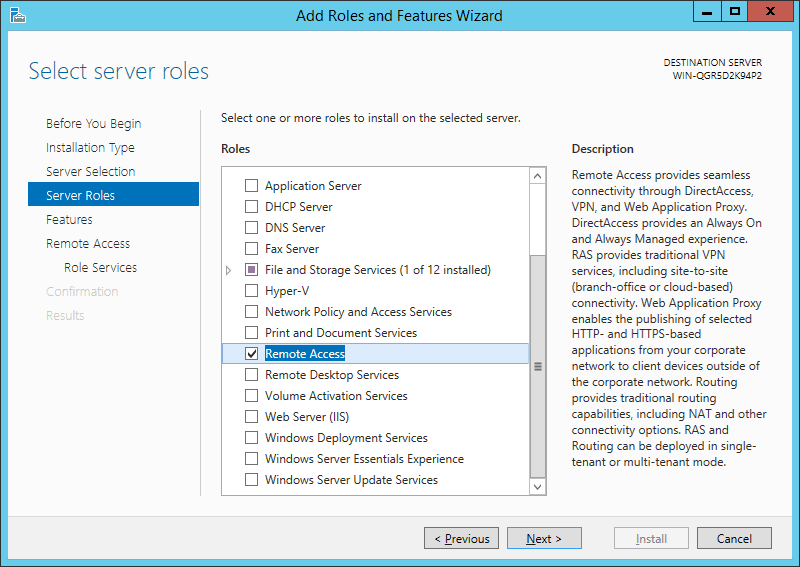
First install the “Remote Access” via Server Manager or Windows PowerShell.
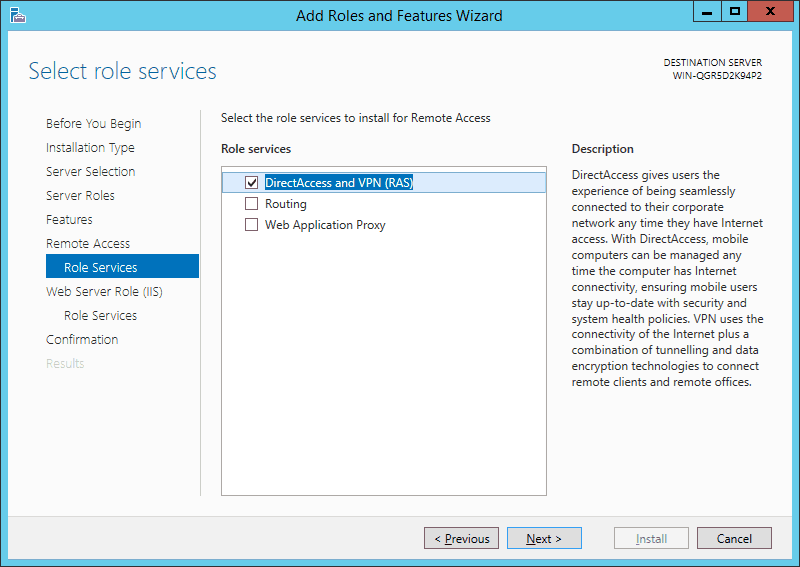
Select the “DirectAccess and VPN (RAS)” role services.
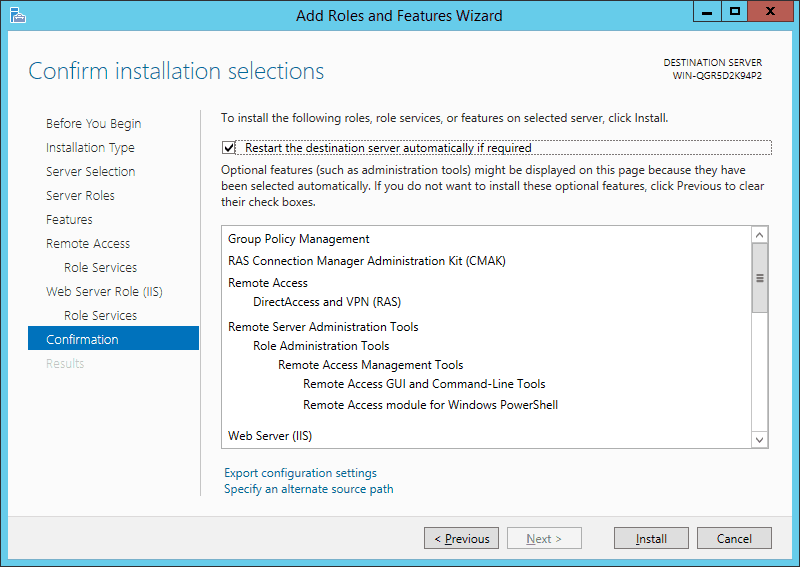
On the next steps just use the default settings. After that you can have a look at the Overview screen and install the role.
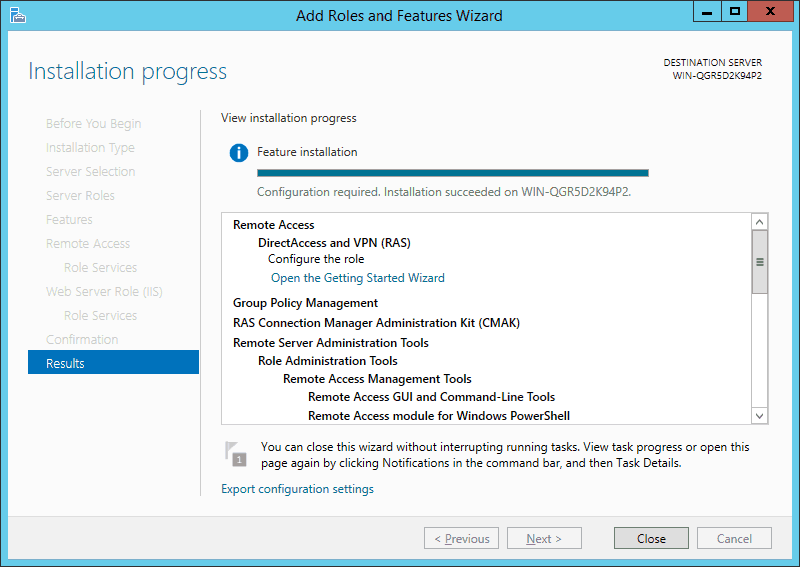
After the features are installed, which can take a while to finish you see the link for the Getting Started Wizard. Click on “Open the Getting Started Wizard“.
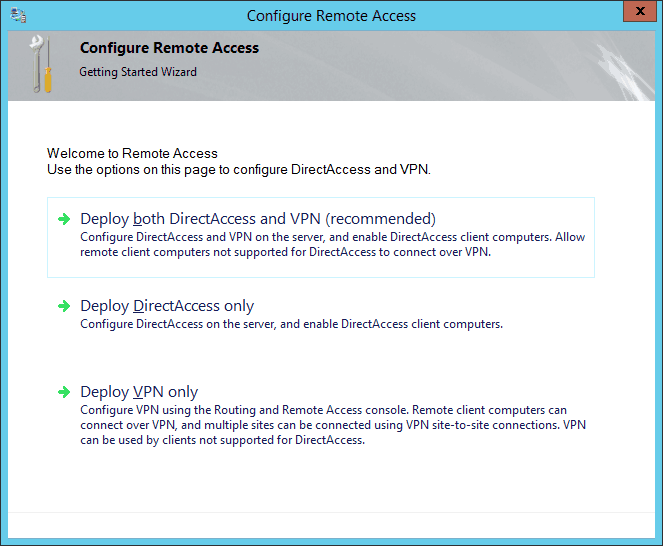
This opens a new wizard which will help you to configure the server. On the first screen select “Deploy VPN only“.
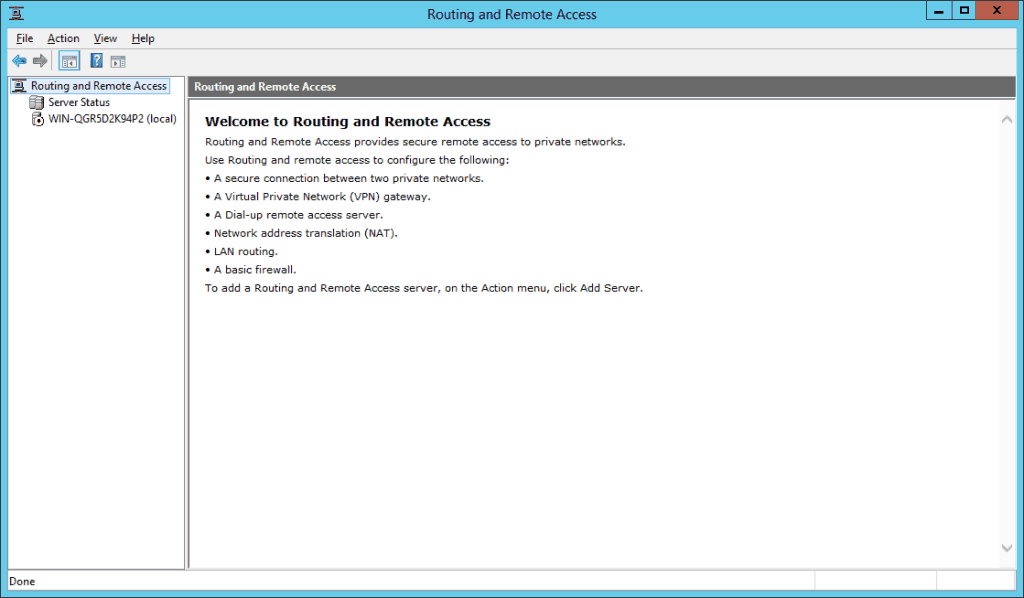
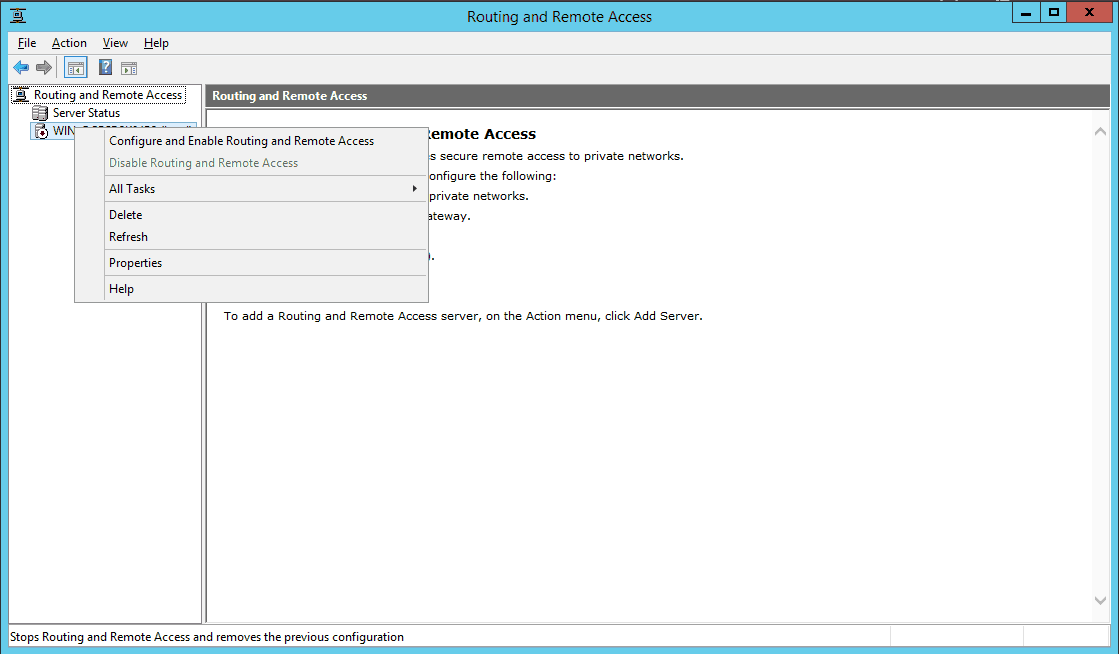
This opens the Routing and Remote Access MMC
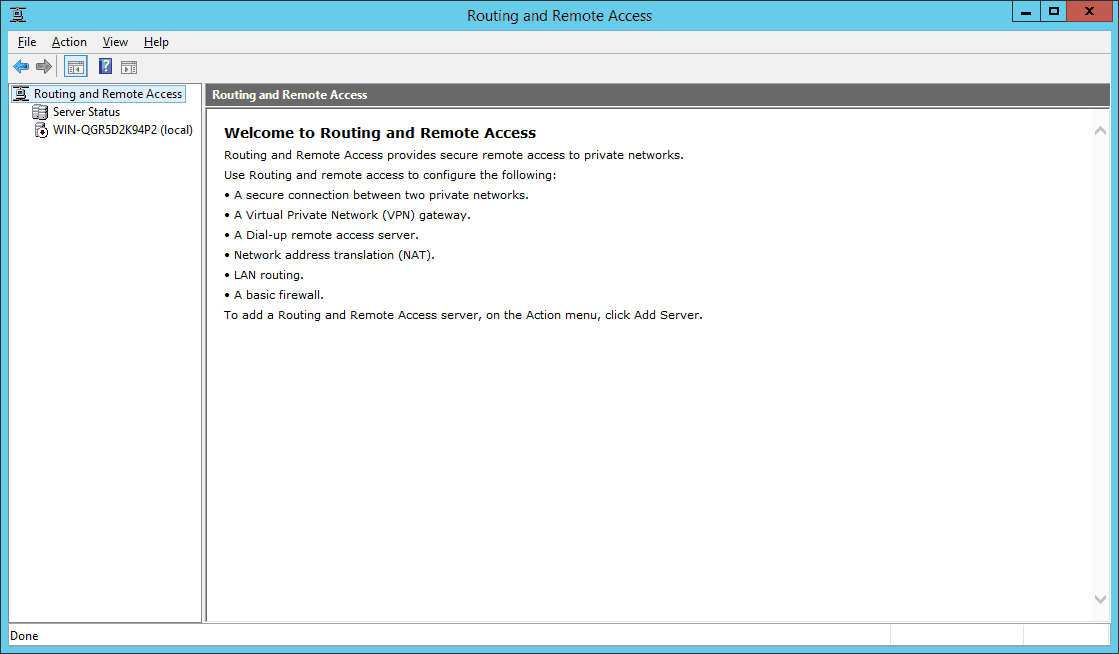
Right click on the Server name and click on “Configure and Enable Routing and Remote Access“.
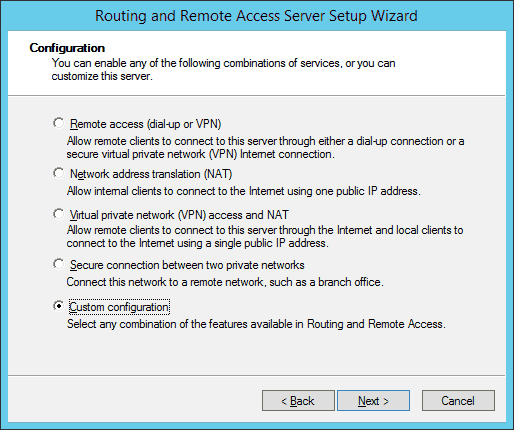
On the new wizard select “Custom configuration“.
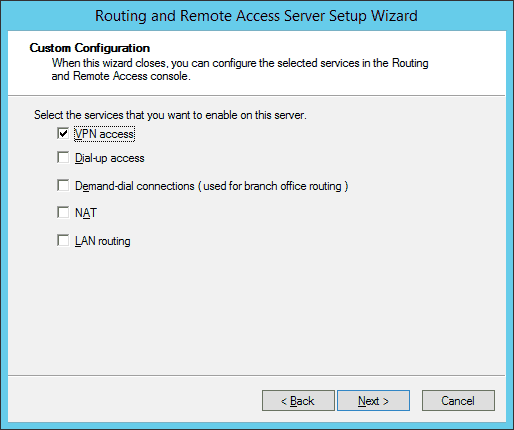
Select “VPN Access“.
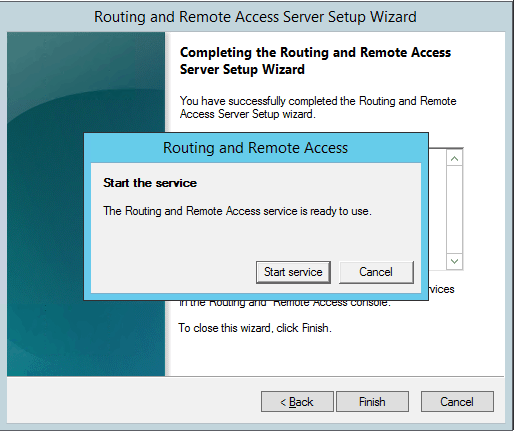
After you have click finish you can now start the Routing and Remote Access service.
If you have an other firewall between the internet and your Windows Server you have to open the following Firewall port sand forward them to your Windows Server:
For PPTP: 1723 TCP and Protocol 47 GRE (also known as PPTP Pass-through)
For L2TP over IPSEC: 1701 TCP and 500 UDP
For SSTP: 443 TCP
For L2TP over IPSEC: 1701 TCP and 500 UDP
For SSTP: 443 TCP
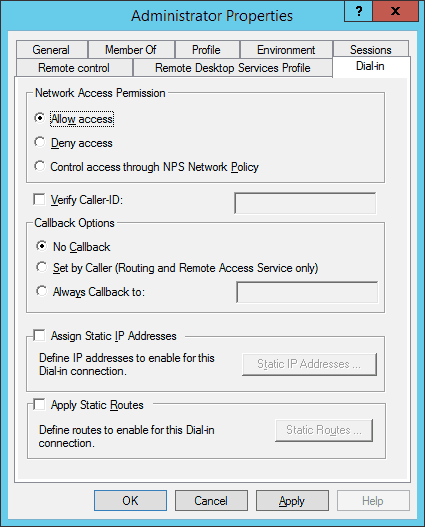
After the installation Users have to be enabled for Remote Access to connect to your VPN Server. On a standalone server this can be done in the Computer Management MMC, in a domain environment this can be done in the user properties of an Active Directory user.
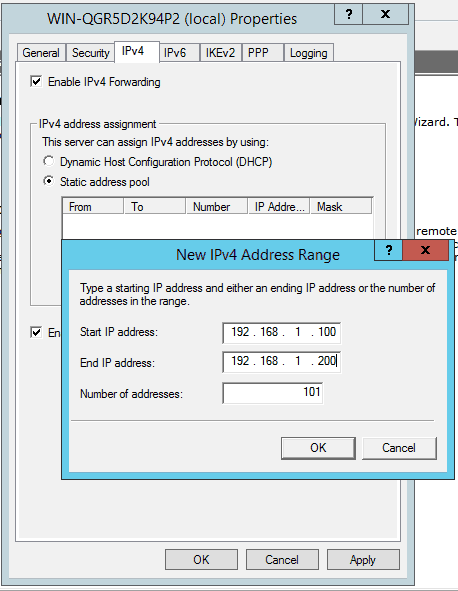
If you don’t have a DHCP Server in your environment you have to add a static IP address pool. This is often needed if you have a single server hosted at a service provider. In the properties of your VPN server you can click on the IPv4 tab and enable and configure the “Static address pool”.
You now have to add a IP address from the same subnet as your static address pool to the network interface of your server, so users can access the server.
I hope this helps you to setup a VPN server in a small environment, lab or hosted server.

This is a great inspiring article.I am pretty much pleased with your good work.You put really very helpful information...
ReplyDeleteHMA Bitcoin
Joyous to know about this information on vpn for windows. Last month, heard of top vpn for windows through few of my friends and registered with best one. The service providers provided excellent speed at very affordable prices. Glad to get their services.
ReplyDeleteAt some point couple of instructive online journals turn out to be exceptionally useful while getting pertinent and new data identified with your focused on range. As I discovered this blog and welcome the data conveyed to my database. Windows Server CAL
ReplyDelete
ReplyDeleteThat appears to be excellent however i am still not too sure that I like it. At any rate will look far more into it and decide personally!
summary
I appreciated your work very thanks
ReplyDeletetop 10 best vpn in the world
Thanks you very much for sharing these links. Will definitely check this out..
ReplyDeletehide my ass vpn service provider
This one is good. Keep up the good work I also visit here: and I get lot of information. surfshark free trial
ReplyDeletePretty nice post. I just stumbled upon your weblog and wanted to say that I have really enjoyed browsing your blog posts. After all I’ll be subscribing to your feed and I hope you write again soon! vpn for torrenting
ReplyDeleteI recently found many useful information in your website especially this blog page. Among the lots of comments on your articles. Thanks for sharing. supervpn free download for windows
ReplyDelete