Sunday, November 9, 2014

HOW TO INSTALL VPN ON WINDOWS SERVER 2012 R2

Original Source:
https://www.thomasmaurer.ch/2014/01/how-to-install-vpn-on-windows-server-2012-r2/
This post shows you how you can install a VPN Server on Windows Server 2012 R2 Step-by-Step. It shows you how you can easily setup a VPN server fro a small environment or for a hosted server scenario.
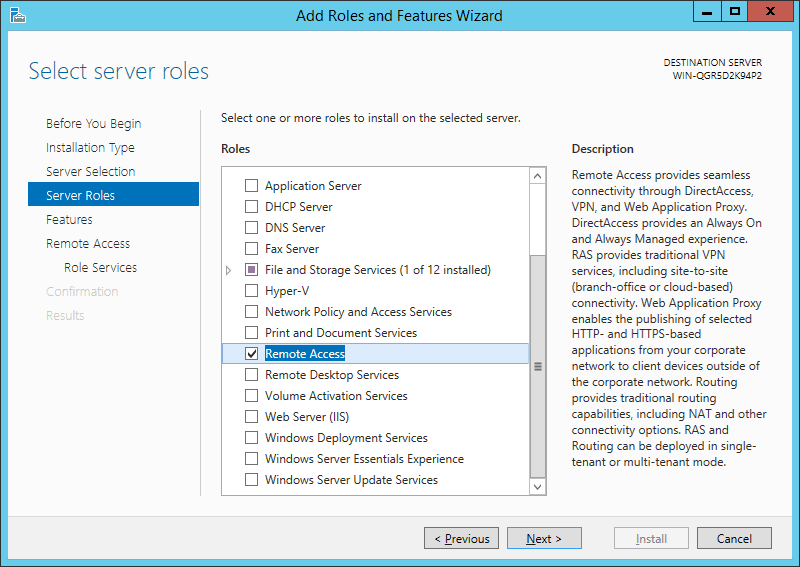
First install the “Remote Access” via Server Manager or Windows PowerShell.
Remote Access
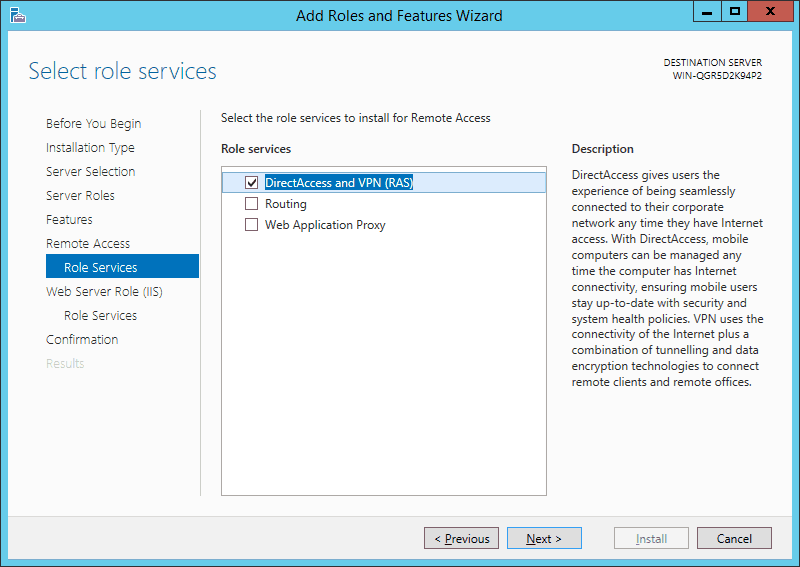
Select the “DirectAccess and VPN (RAS)” role services.
DirectAccess and VPN (RAS)
On the next steps just use the default settings. After that you can have a look at the Overview screen and install the role.
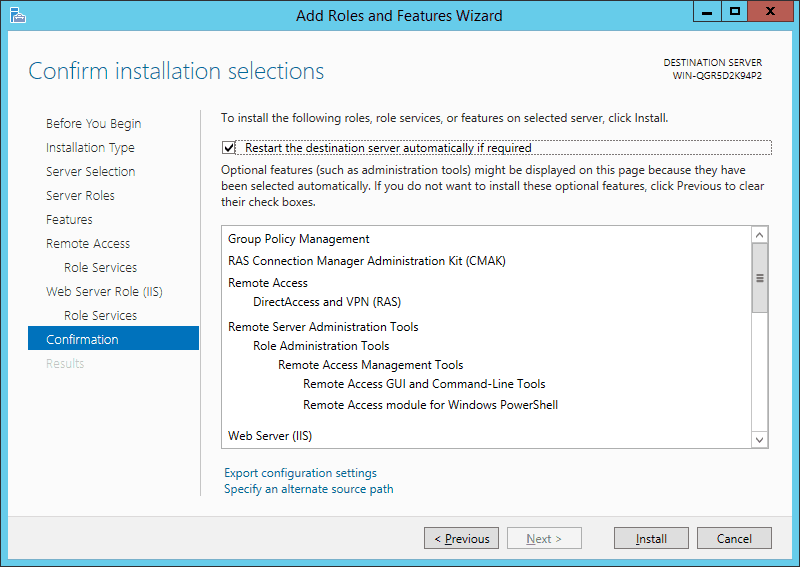
Remote Access Installtion Confirmation
After the features are installed, which can take a while to finish you see the link for the Getting Started Wizard. Click on “Open the Getting Started Wizard“.
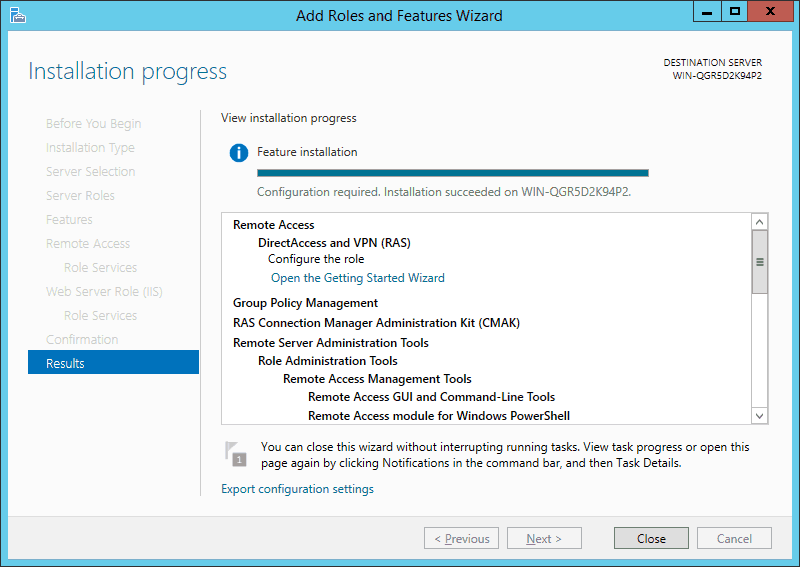
Getting Started Wizard
This opens a new wizard which will help you to configure the server. On the first screen select “Deploy VPN only“.
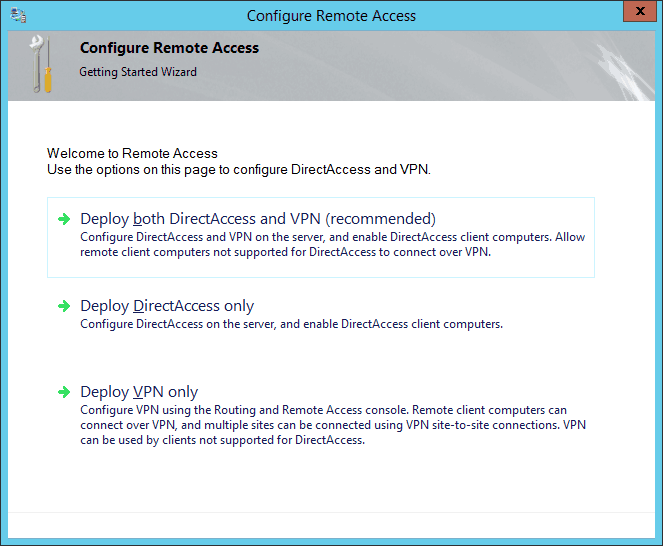
Deploy VPN
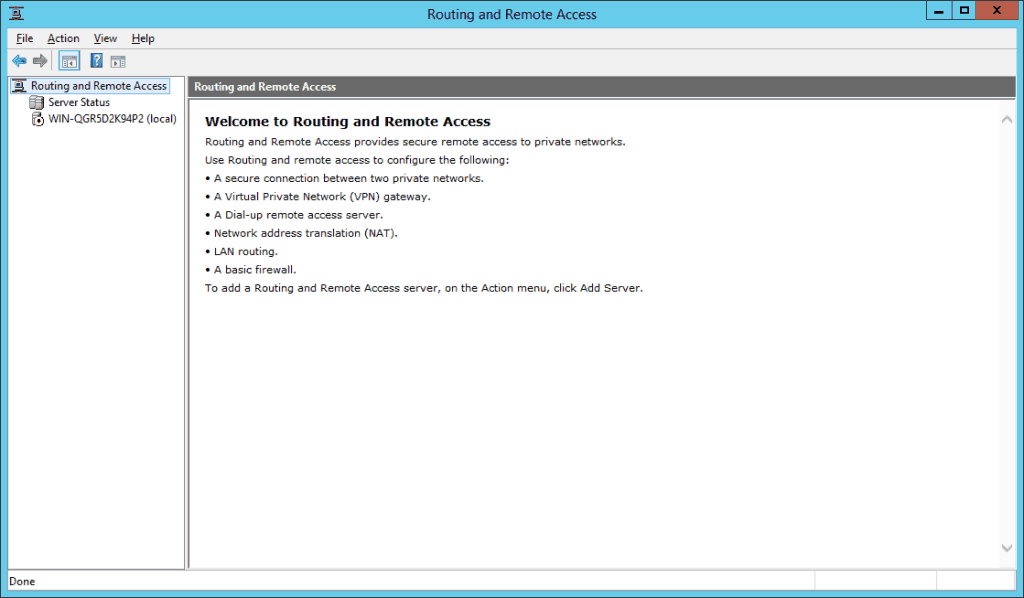
This opens the Routing and Remote Access MMC
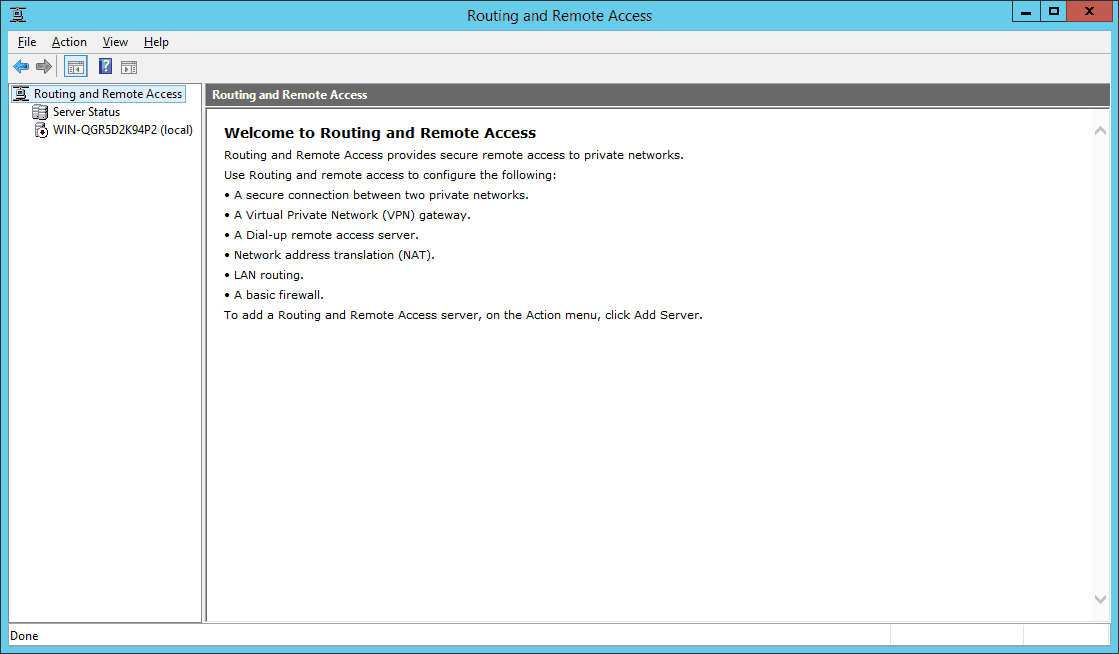
Routing and Remote Access MMC
Right click on the Server name and click on “Configure and Enable Routing and Remote Access“.
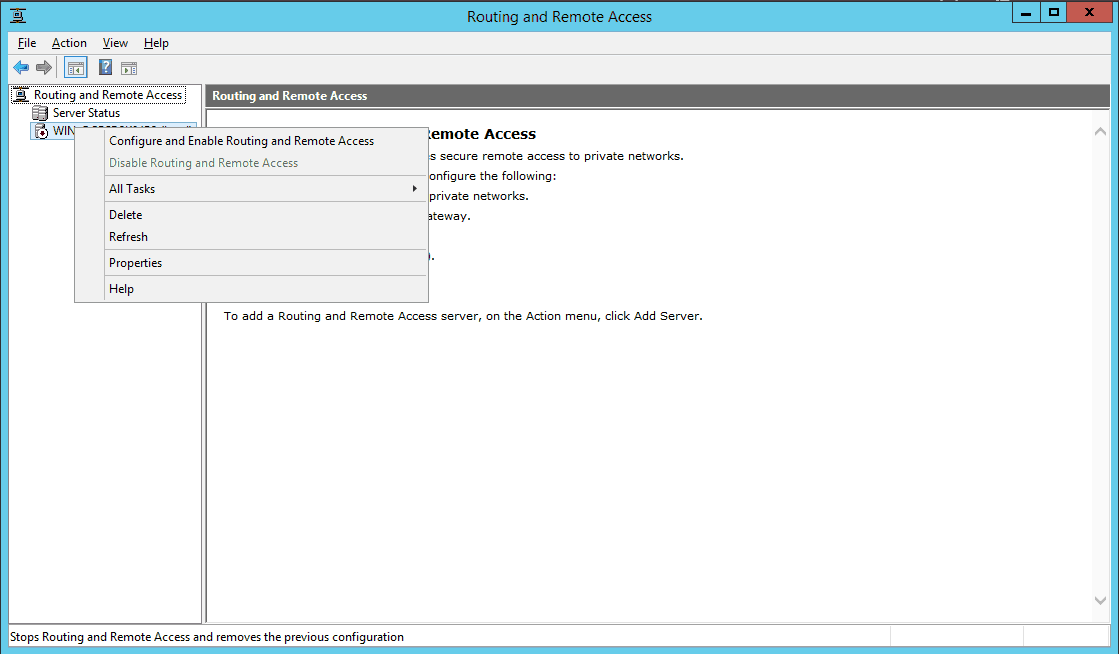
Configure and Enable Routing and Remote Access
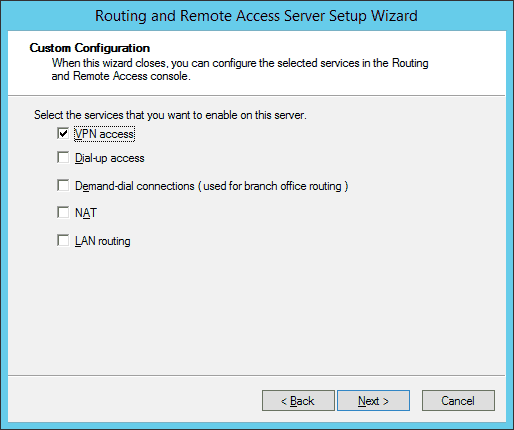
On the new wizard select “Custom configuration“.
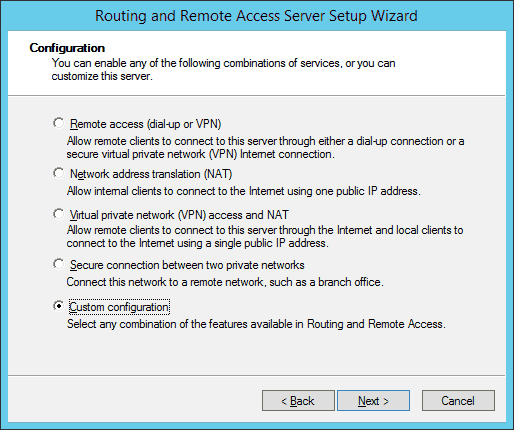
Custom VPN Configuration
Select “VPN Access“.
VPN Access
After you have click finish you can now start the Routing and Remote Access service.
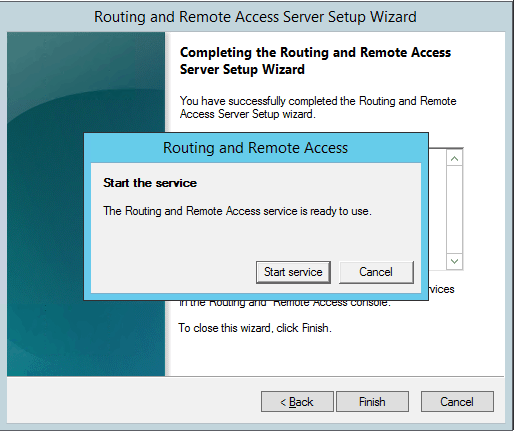
Start Rotuing adn Remote Access Service
If you have an other firewall between the internet and your Windows Server you have to open the following Firewall port sand forward them to your Windows Server:
For PPTP: 1723 TCP and Protocol 47 GRE (also known as PPTP Pass-through)
For L2TP over IPSEC: 1701 TCP and 500 UDP
For SSTP: 443 TCP
After the installation Users have to be enabled for Remote Access to connect to your VPN Server. On a standalone server this can be done in the Computer Management MMC, in a domain environment this can be done in the user properties of an Active Directory user.
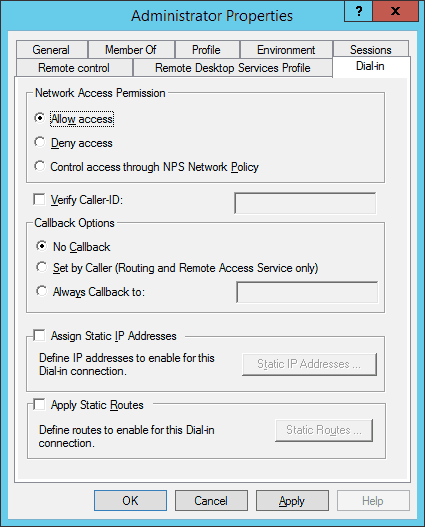
Allow Remote VPN Access for User
If you don’t have a DHCP Server in your environment you have to add a static IP address pool. This is often needed if you have a single server hosted at a service provider. In the properties of your VPN server you can click on the IPv4 tab and enable and configure the “Static address pool”.
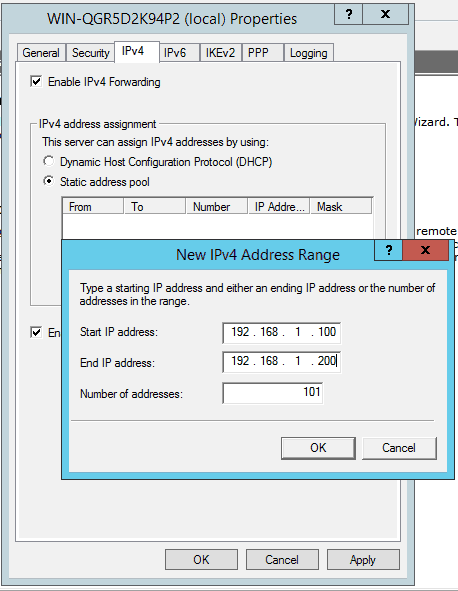
static address pool
You now have to add a IP address from the same subnet as your static address pool to the network interface of your server, so users can access the server.
I hope this helps you to setup a VPN server in a small environment, lab or hosted server.

Thursday, March 6, 2014

SHA-256 Calculator

SHA-256 Calculator

Calculate SHA256 Hash

What is SHA-256?

The SHA (Secure Hash Algorithm) is one of a number of cryptographic hash functions. A cryptographic hash is like a signature for a text or a data file. SHA-256 algorithm generates an almost-unique, fixed size 256-bit (32-byte) hash. Hash is a one way function – it cannot be decrypted back. This makes it suitable for password validation, challenge hash authentication, anti-tamper, digital signatures.
SHA-256 is one of the successor hash functions to SHA-1, and is one of the strongest hash functions available.
With this online tool you can easily generate hashes.
Source: http://www.xorbin.com/

Monday, February 17, 2014

CCNA Bit, Decimal and Maths

BIT DECIMAL Means
1 = 128 10000000
2 = 192 11000000
3 = 224 11100000
4 = 240 11110000
5 = 248 11111000
6 = 252 11111100
7 = 254 11111110
8 = 255 11111111


MATHS

/ 28 
--------------------
255 255 255 240
8 + 8 + 8 + 4


/20
-----------------
255  255  240     0
8    + 8  + 4    +0

/12
-----------------
255    240    0    0
8      +4   +0   +0

Tuesday, February 4, 2014

VSphere Client Cannot connect to the Client CD/DVD drive while trying to install a client server

Symptoms

  • Connecting to the Client CD/DVD drive using Passthrough IDE mode fails to work in vSphere Client.
  • This issue may occur with the vSphere Client on 32 bit or 64 bit versions of the Windows Operating Systems.
  • After connecting to a local ISO, the Media connect dropdown menu for a Virtual machine stops responding at:

    CD/DVD Drive 1 (Connecting...)screen.

Cause

This issue can occur if you do not have local Administrator access to the operating system running the vSphere Client.

Resolution

To resolve this issue, ensure you have local administrator access:
 
To ensure you have local administrator access: 
  1. Close the vSphere Client.
  2. Right-click the vSphere Client icon and Click Run as Administrator.
  3. Right-click the virtual machine and click Edit Settings.
  4. Click CD/DVD and change the device to Passthrough IDE.
  5. Power on the virtual machine and connect to the local CD/DVD drive.
  6. Select the virtual machine from the vSphere Client menu and Click Inventory > Virtual Machine > Guest > Send Ctrl+Alt+Del.